
Boogie Sessions App Setup GuideUpdated a day ago
Boogie Sessions is a visualizer and performance logbook for every Boogie session — think Strava, built specifically for the Boogie. It's in Beta, mainly to test the upload process, but basic functionality works. Expect bugs.
Sessions and detailed logs are automatically recorded on the Boogie and Remote, then uploaded directly to the cloud via your home WiFi. Once set up, no phone or computer is required. The data also helps us continuously improve the Boogie and quickly diagnose any issues.
Please follow the instructions before contacting support.
Please read the known bugs before contacting support.
Start by Creating a Boogie Sessions account here 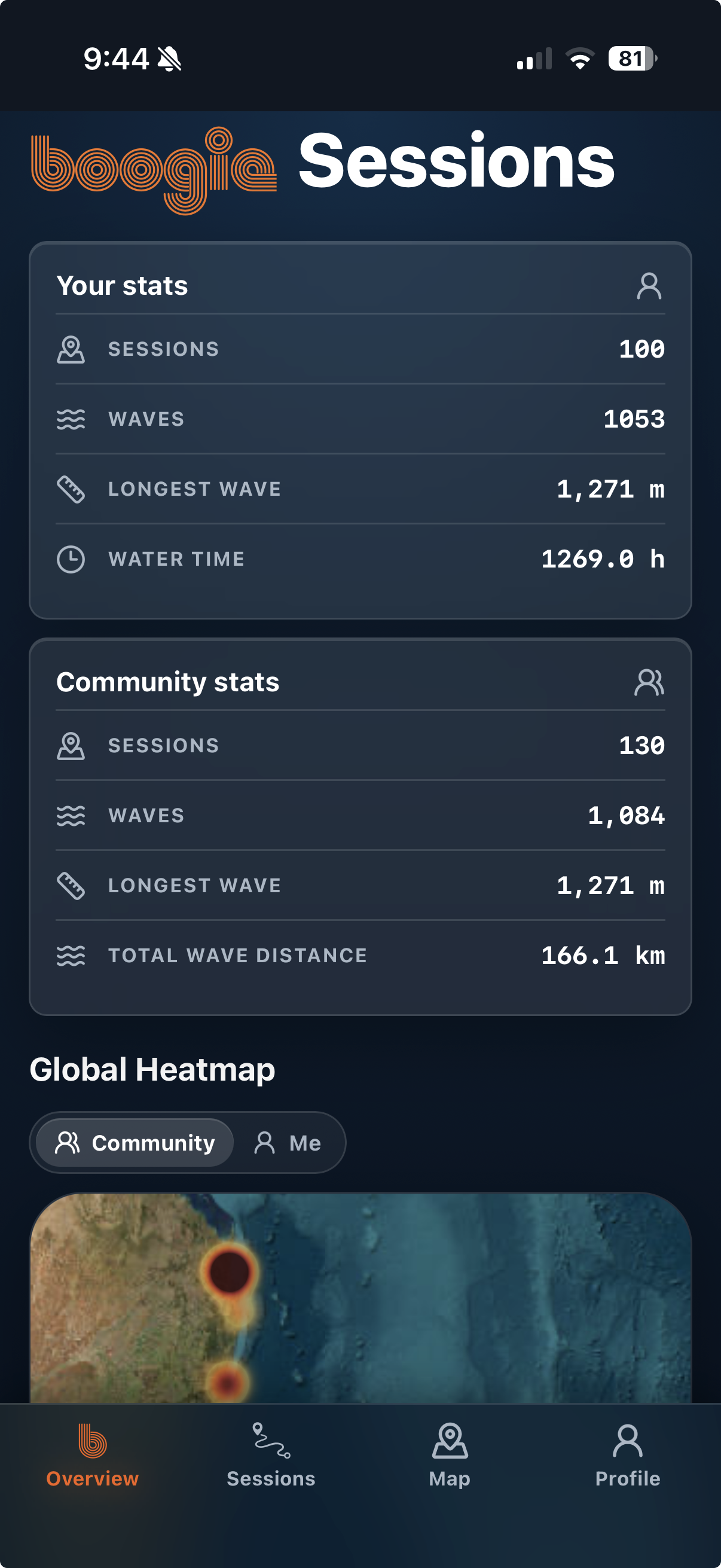
Connecting the remote to your home WiFi. This only needs to be done once.
- Make sure you are running the Latest Firmware on Boogie and Remote. Older firmware versions will not work.
- Enable Remote Update, and connect to the remotes WiFi, just like if you were doing a firmware update.
- In your computer or phone browser go to 192.168.4.1
- Click "List available SSID"
- Click on your home WiFi name from the list.
- Enter in your home WiFi password. You can add up to 5 different WiFi usernames and passwords, ie home, holiday house, personal hotspot, starlink etc. WiFi SSIDs and passwords are case sensitive.
- Click the "?" to test the WiFi connection and ensure the password is correct.
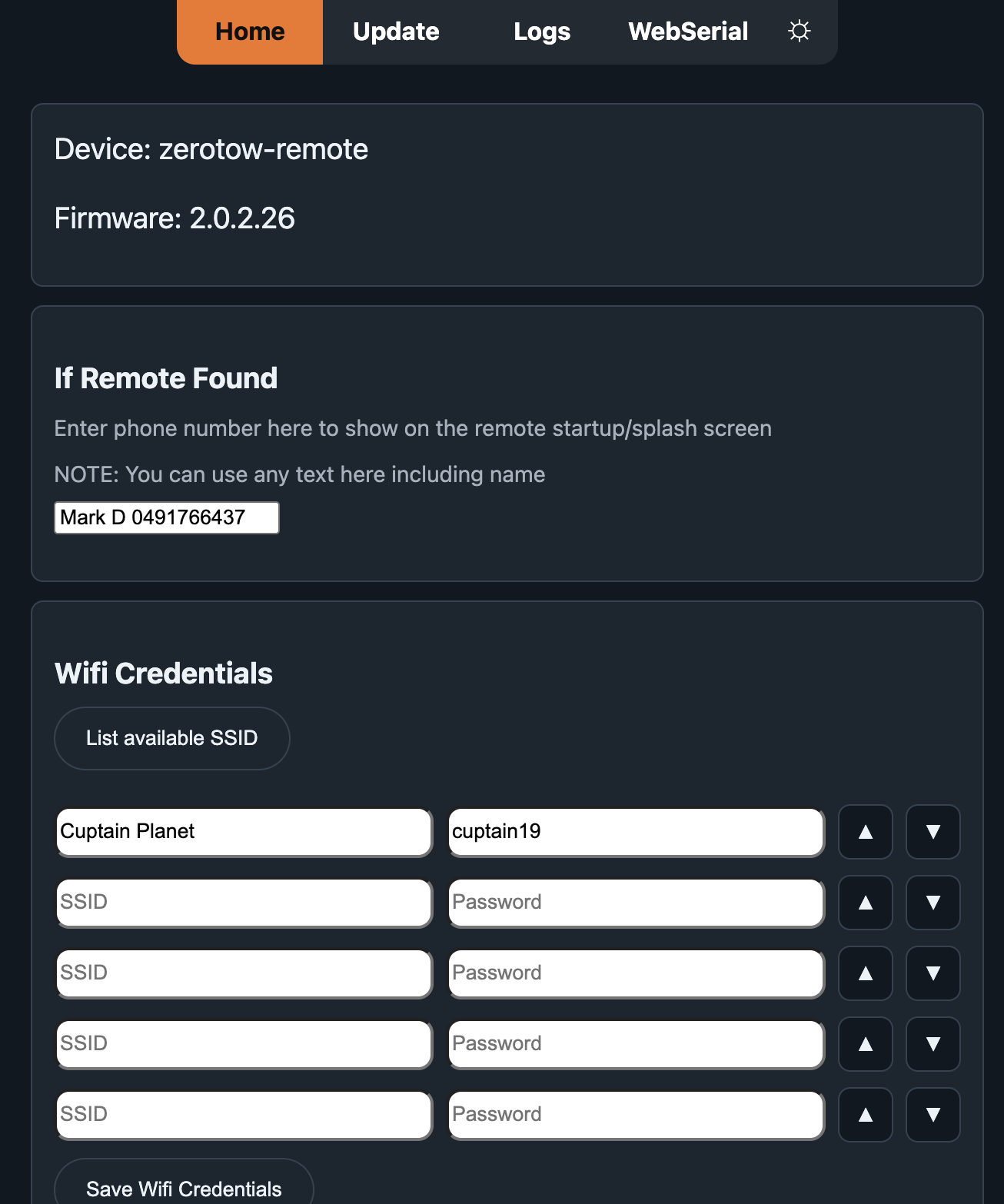
- Click Save
- Restart your remote by turning it on and
Claiming / Adding the Remote and Boogie to your Boogie Sessions account. This only needs to be done once.
- Turn your Boogie and Remote on.
- On the Remote go to settings > upload logs.
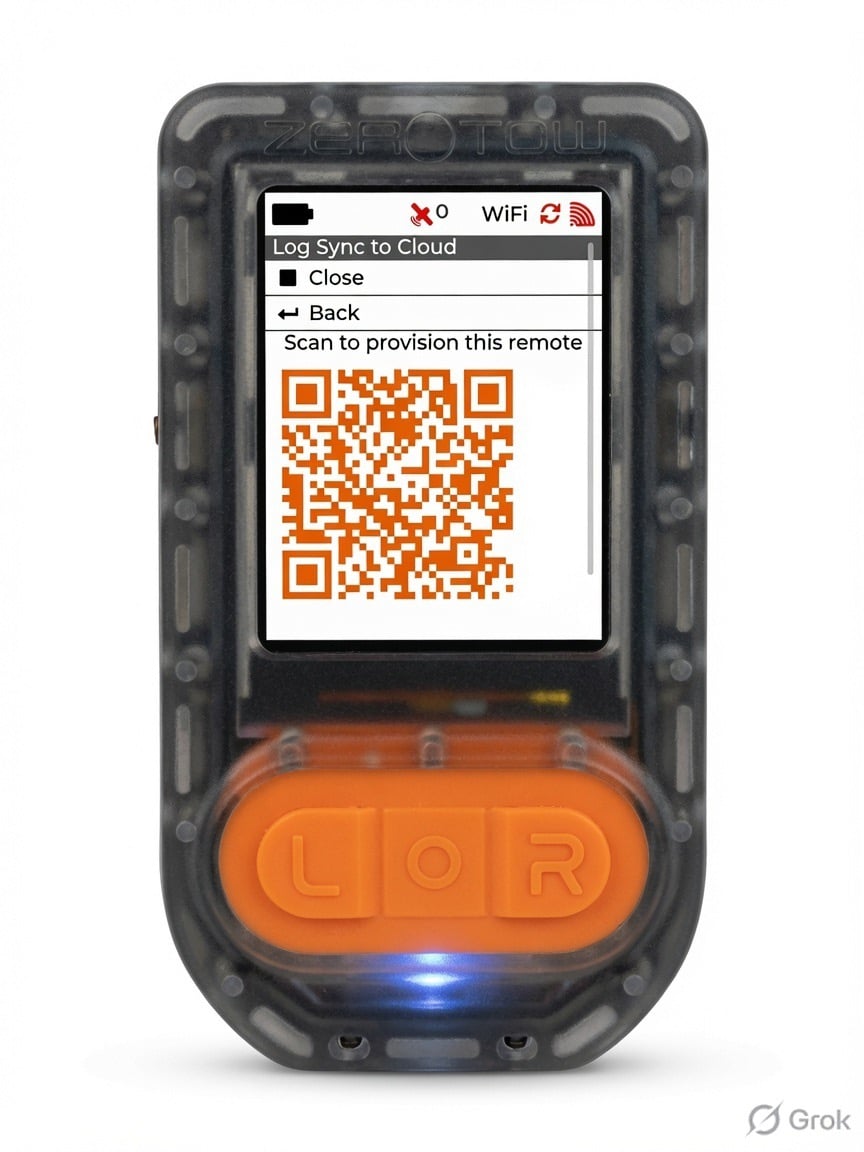
- Once the remote connects to WiFi, a QRcode should be displayed after a few seconds.
- Scan the QRcode to link your Remote to a Boogie Sessions Account.
- If no QRcode is displayed the remote did not connect to the internet so recheck your Wifi credentials in step 6. WiFi names and passwords are case sensitive.
Syncing Logs
- When with in range of one of the saved wifi networks, on the remote go to settings> upload logs.
- The Remote and Boogie will connect to WiFi and upload the logs.
- On time first sync a screen may be displayed asking to also claim the Boogie. Click accept.
- The Boogie and Remote will start uploading logs.
- The Boogie will upload all logs since its birth, depending on how old the Boogie is this could take several hours. The remote does not need to be on for the Boogie to continue uploading logs.
- After syncing logs restart/power off the Boogie and Remote before going for your next session.
Viewing Logs
- Boogie Sessions is a Web App, so it runs in on the browser rather than an app through the App Store. You can add the link to your home page for a full screen app like experience. Video of how to do it add to your home screen on iOS
- Boogie Sessions is in beta at the moment, maps, tracks and displays will improve. Let us know what your would like to see or visualized.
Known Bugs
- Some people have had difficulty claiming the Boogie. This is a home wifi channel issue and we are working on a fix. Turn off the Boogie to just sync remote logs for now until the fix is ready.
- The Boogie disconnecting from the Remote during wifi sync, again a home wifi channel issue but are working on a fix.
- Sessions max out at 100. Sessions are still uploaded, but the number displayed is incorrect. Working on a fix.
- Some sessions are shown to be in the future - ie 2032, this is a gps date bug on the data logs, working on a fix.