
Simple WiFi UpdatesUpdated a day ago
On firmware 2.2.0 and above, the Remote and Boogie can connect directly to your home Wi-Fi for uploading logs and installing firmware updates. No computer needed.
Follow the steps below to save your home Wi-Fi details to the Remote.
Turn the Remote on.
Hold the Left + Right buttons to open the menu.
Go to Firmware Updates.
Select Set Remote WiFi or Enable Remote Update
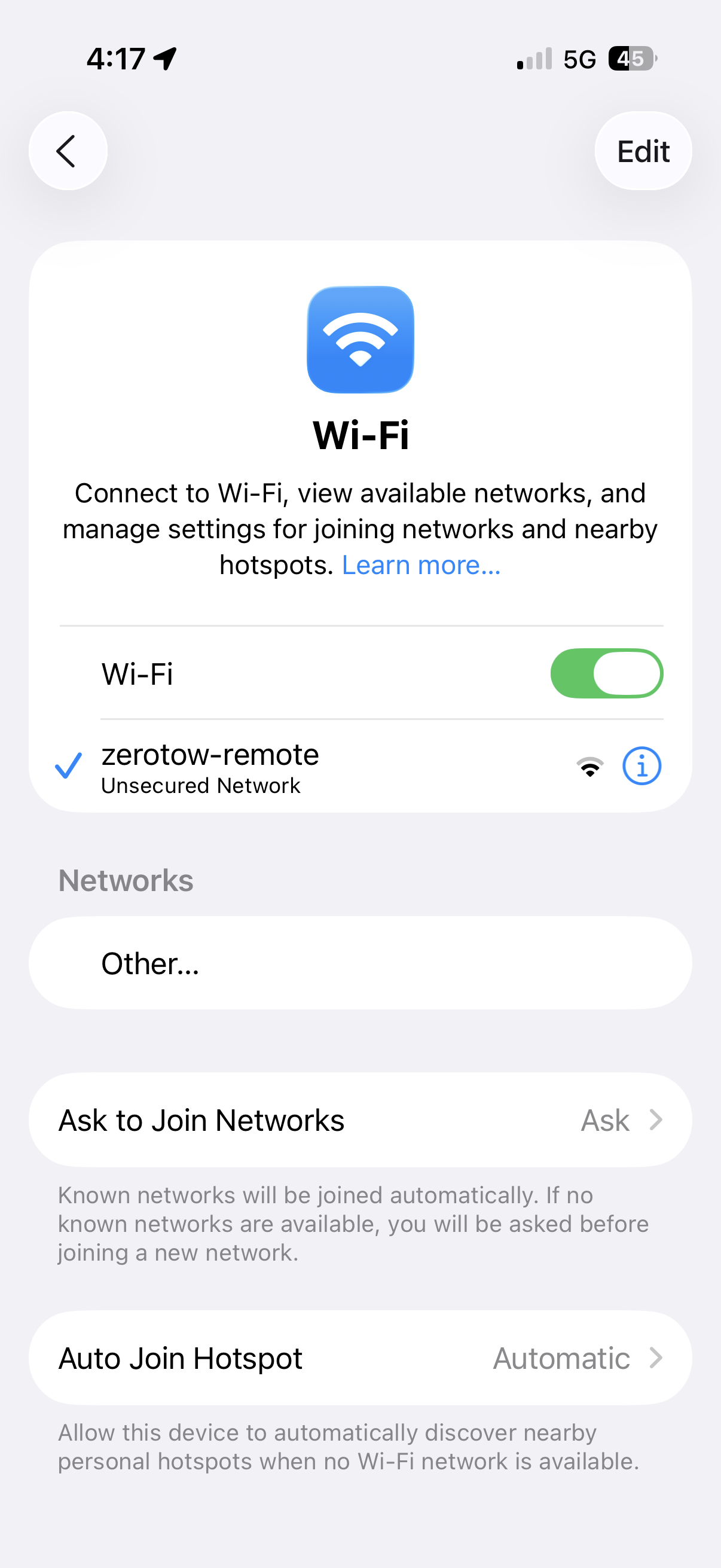
On your phone or computer, open your Wi-Fi settings and connect to the network called zerotow-remote.
Open Chrome or Safari on your laptop and enter 192.168.4.1 in the address bar. If you don't see the setup page, or receive a "Cannot connect to server" message, check that your phone or computer is still connected to the zerotow-remote Wi-Fi network.
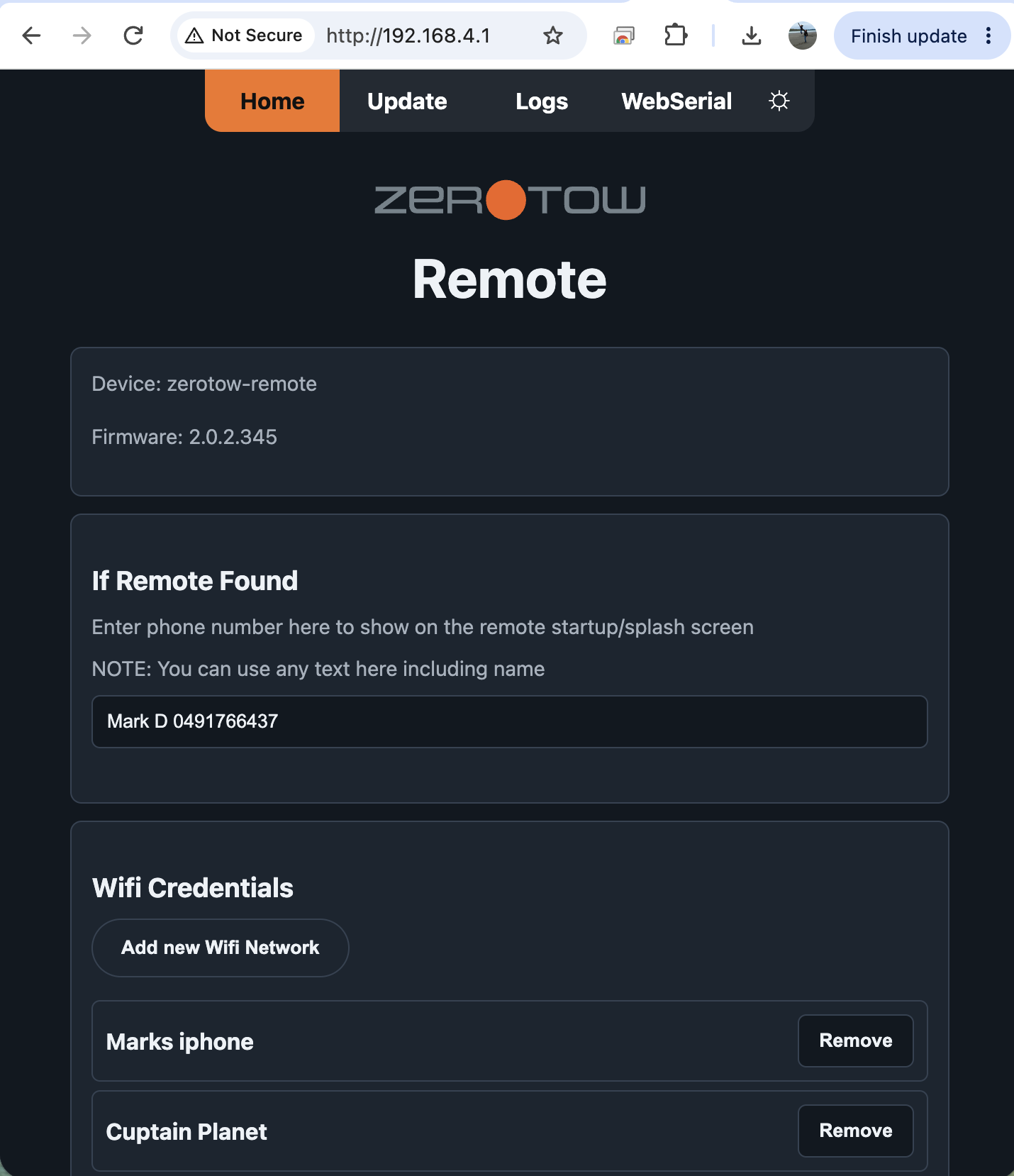 Click Add New WiFi Network.
Follow the prompts to select your home Wi-Fi network, enter the password, and save the Wi-Fi details. When the remote restarts the WiFi details will be saved. The remote will transfer the WiFi details to the Boogie for log uploading and firmware updates
Using a Personal Hotspot
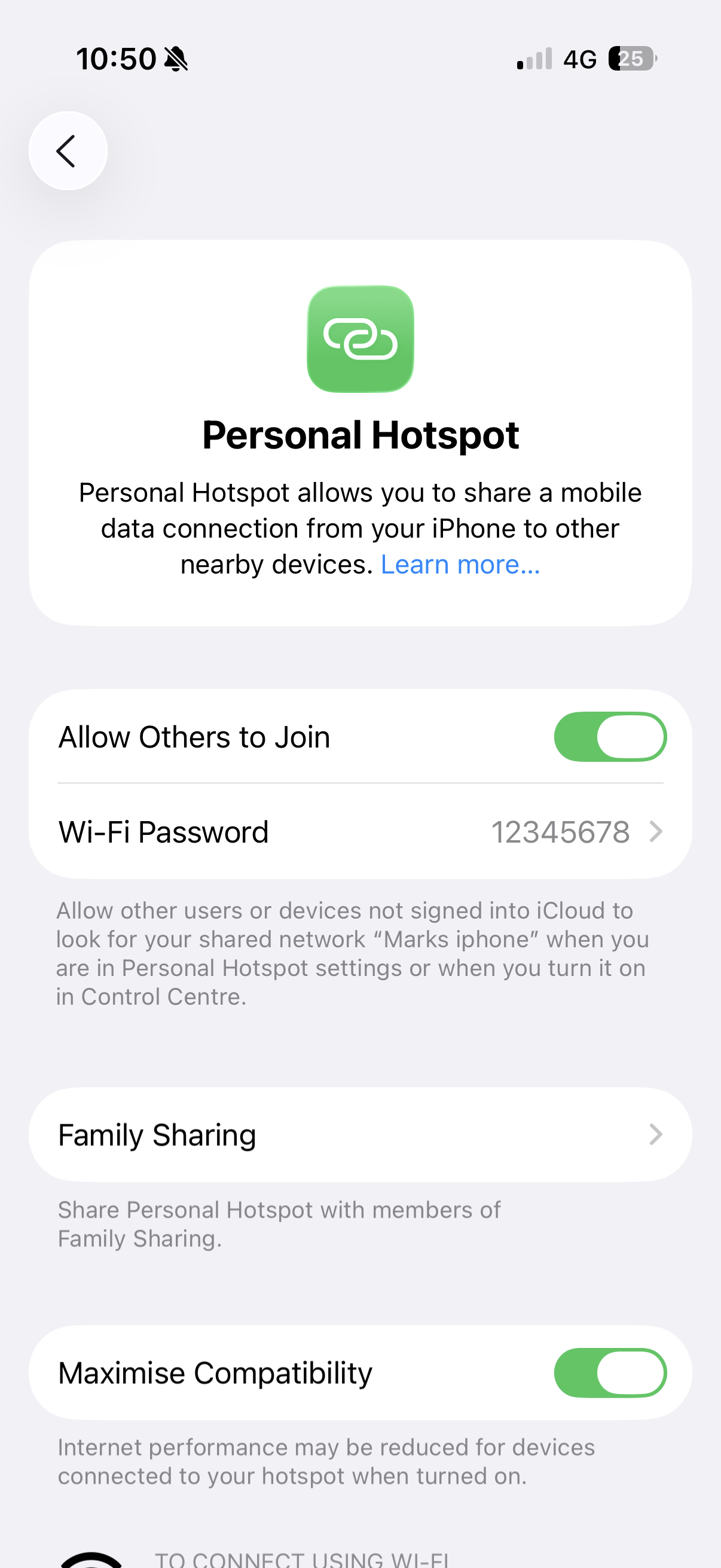
A personal hotspot from your phone should work depending on your mobile plan and phone. If it does not connect reliably then try enabling "Maximise Compatibility"
Mesh Networks and troubleshooting
Some routers, particularly mesh Wi-Fi systems, can behave differently when connecting to smart devices like the Boogie and Remote.
If you're having trouble connecting to your home Wi-Fi, try the following:
Create a separate 2.4 GHz network. The Remote and Boogie only supports 2.4 GHz Wi-Fi, not 5 GHz or 6 GHz. If your router combines these frequencies under one network name, try creating a separate 2.4 GHz network or guest network.
Check your Wi-Fi security settings. Use WPA2-Personal (AES) security. The Remote and Boogie may have trouble connecting to networks using WPA3 or mixed WPA2/WPA3 security.
Check your mesh Wi-Fi settings. Mesh systems such as Google Nest, Eero, Orbi and Deco can sometimes cause connection issues. Try temporarily disabling band steering, fast roaming (802.11r) or other smart connection features if your router allows it.
Firmware Updates
Once your Wi-Fi details have been saved, future firmware updates can be completed directly from the Remote.
Have the Boogie and Remote as close as possible to your Wifi Router, have the Boogie turned on and paired with the remote.
Go to:
Menu → Firmware Updates → Check for Updates
The Remote will connect to your saved Wi-Fi network and check for the latest available firmware.
Troubleshooting
- If the Process gets stuck halfway through turn off and on again the the Remote and Boogie.
- You can turn off the Boogie to to just update the remote by itself.