
How to Connect your Remote to WiFiUpdated 7 hours ago
On firmware 2.0.2.3 and above, the Remote and Boogie can connect directly to your home Wi-Fi for uploading logs and installing firmware updates.
Follow the steps below to save your home Wi-Fi details to the Remote.
Turn the Remote on.
Hold the Left + Right buttons to open the menu.
Go to Firmware Updates.
Select Set Remote WiFi.
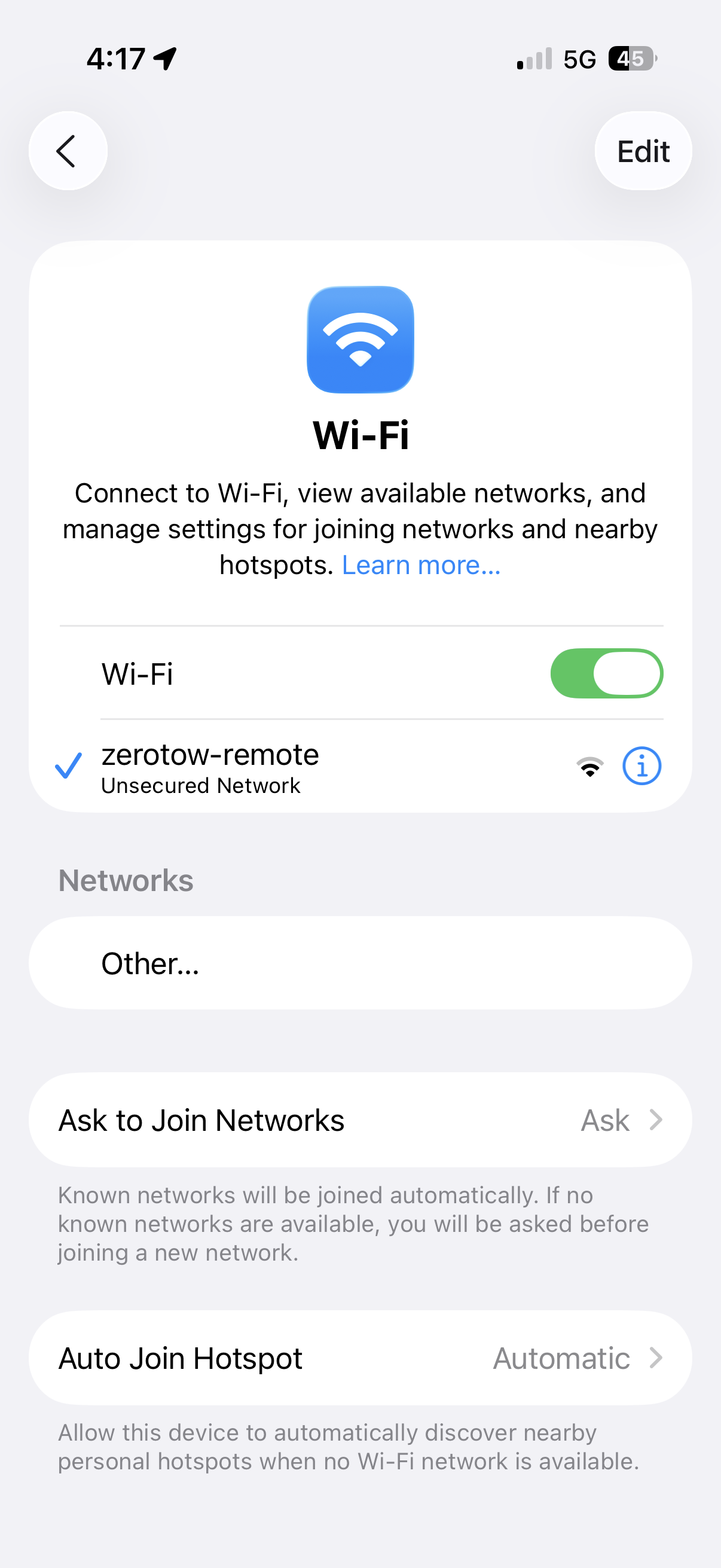
On your phone or computer, open your Wi-Fi settings and connect to the network called zerotow-remote.
Open Chrome or Safari and enter 192.168.4.1 in the address bar. If you don't see the setup page, or receive a "Cannot connect to server" message, check that your phone or computer is still connected to the zerotow-remote Wi-Fi network.
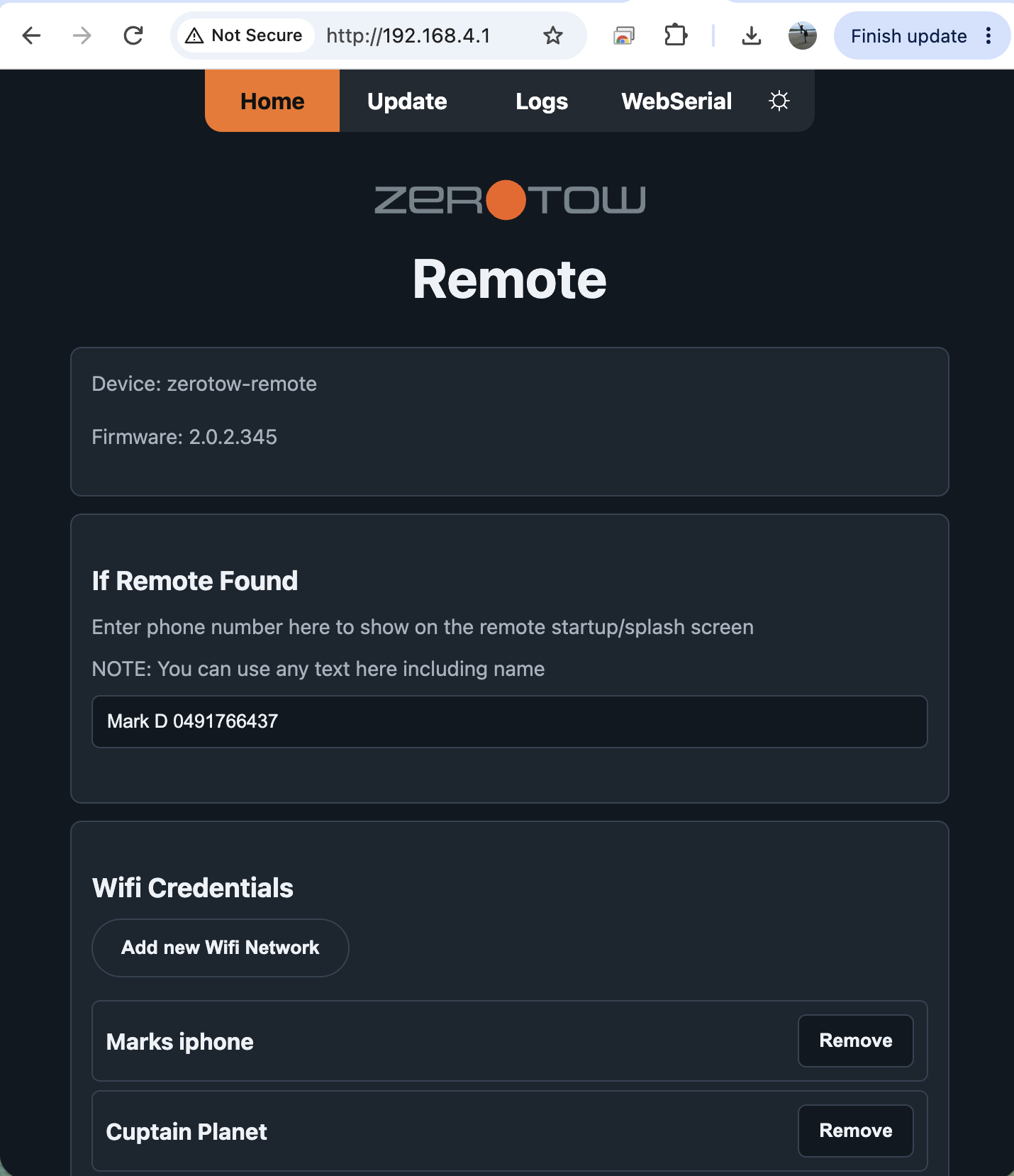 Click Add New WiFi Network.
Follow the prompts to select your home Wi-Fi network, enter the password, and save the Wi-Fi details. When the remote restarts the WiFi details will be saved. The remote will transfer the WiFi details to the Boogie for log uploading and firmware updates
Firmware Updates
Once your Wi-Fi details have been saved, future firmware updates can be completed directly from the Remote.
Go to:
Menu → Firmware Updates → Check for Updates
The Remote will connect to your saved Wi-Fi network and check for the latest available firmware.